

In many businesses, system access is often overlooked, till something goes wrong. Eg;
-
A cashier accidentally edits product prices.
-
A former employee still has login access.
-
Sensitive reports are visible to staff who don’t need them.
These small gaps can lead to big losses. That’s why dPOS roles and permissions are built to help you control exactly who can see what, do what, and access where, keeping your business secure while operations run smoothly.
Why access control matters
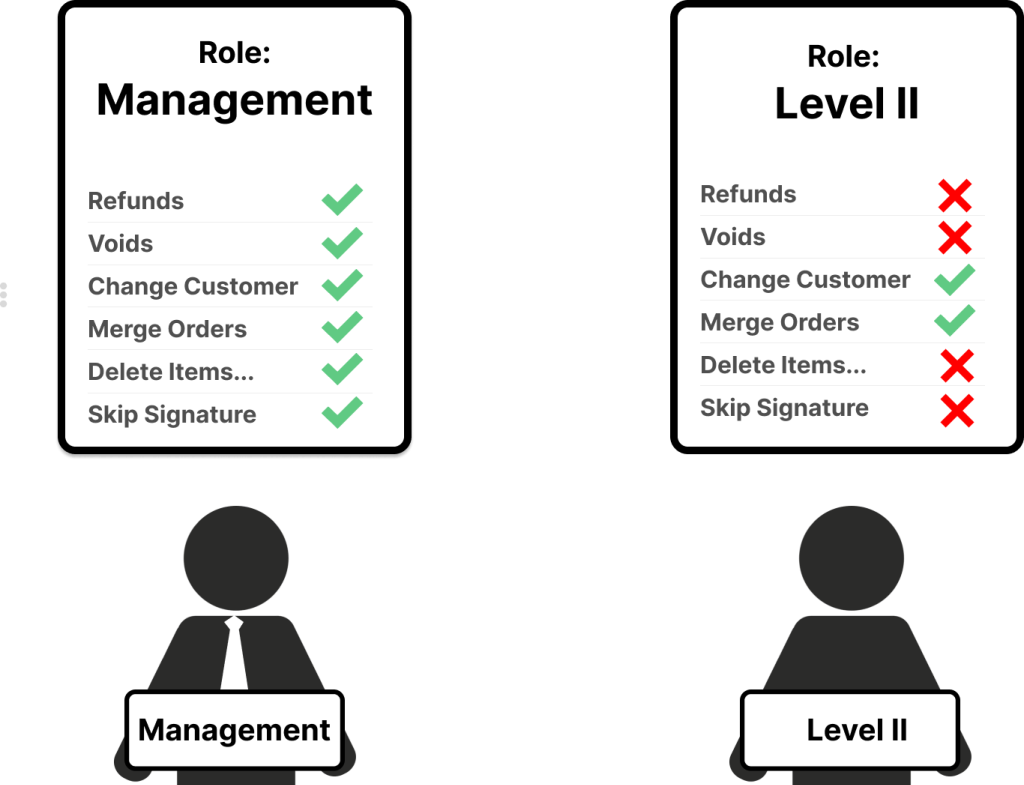
Not every team member needs full system access.
Your cashier should focus on sales, your stock clerk should manage inventory, your manager may need reports, and as the business owner, you need full visibility and control.
With dPOS, you can assign each employee the right level of access based on their roles.
Default roles in dPOS
-
Admin
Full access to all modules, reports, settings, users, etc.
-
Cashier
Access only to point-of-sale functions for quick and secure selling.
Creating custom roles for your team
Every business has different needs. dPOS allows you to create roles that match your structure.
Examples include:
-
Admin
-
Cashier
-
Sales agent
How to Create a Role
-
Go to user management > roles
-
Click add role
-
Enter the role name
-
Select permissions
-
Choose allowed locations.
-
Save changes
Simple, fast, and scalable.
Permissions you can control
dPOS gives you detailed permission settings such as:
-
View records
-
Create new entries
-
Edit existing data
-
Delete records
-
Access specific modules only
-
Restrict access by location
This means staff only access what they truly need.
Real business benefits
Using roles and permissions helps you:
Improve security
Reduce unauthorized access and risky changes.
Increase accountability
Know who did what and when.
Protect sensitive data
Keep profits, reports, and settings visible only to authorized users.
Run multiple locations better
Give location-specific access without exposing the full business.
Best practices for smart businesses
To get the most from dPOS:
-
Create roles based on job responsibilities
-
Review permissions regularly
-
Remove access immediately when staff leave
-
Avoid sharing admin accounts
Why businesses choose dPOS
As your team grows, controlling access becomes more important.
dPOS helps you build structure, reduce risk, and keep operations professional, whether you manage one shop or multiple shops.
Because great businesses don’t give everyone admin access.
Ready to Secure Your Operations?
Let dPOS help you manage staff access the smart way.